Trello is an amazing tool that helps with task and project management. What many people don’t know is that Trello does a lot more than organize your work. Once you are able to go around your Trello email notifications, you can begin enjoying the full benefits of the app.
In this post, we will provide insight into email notifications on Trello and how to configure yours. Ready? Let’s dive straight in.
Configuring Trello Email Notifications
If you are a new Trello user, then what you are likely to see on your account is “watch”. However, prior to that, the platform made use of the term “subscribe”. Regardless of the terminology you see, they all perform the same function which is to ensure that you get a notification when changes are made to cards, boards, or lists.
Watching a Card
Your subscription to a card means that you get notifications for the following:
- All comments.
- Card archives and moves.
- Changing, adding, and upcoming deadlines.
Watching a Board or List
Subscription to a board or list isn’t so different. These are the notifications that you get:
- Notifications for the different cards on the board or list.
- Notifications for the latest cards to be added.
- When your name is mentioned in another user’s comment.
- When you get added to a board, team, or card.
- Notifications when your name is mentioned on a checklist item.
- When any of your boards gets closed.
- Another user appoints you as an admin of a team or board.
With these out of the way, let’s see how to configure your Trello email notifications.
Card Watching
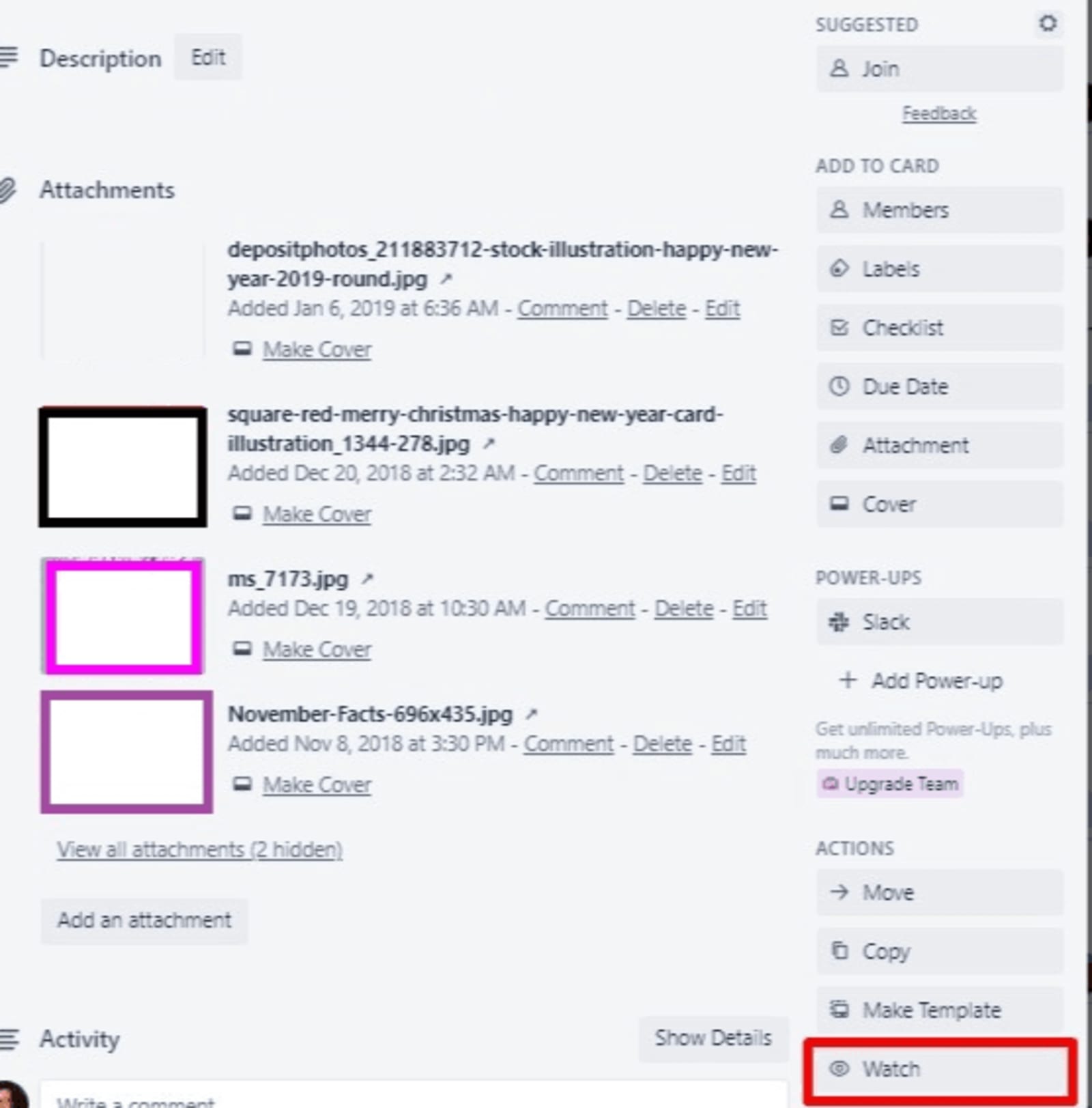
When a new card is created, if you were added as a member, you are automatically subscribed. To subscribe to a card, you can simply click on the “Watch” button. Make sure you do this while the card is open.
All you need to do is scroll down to “Actions” and click “Watch”.
List Watching

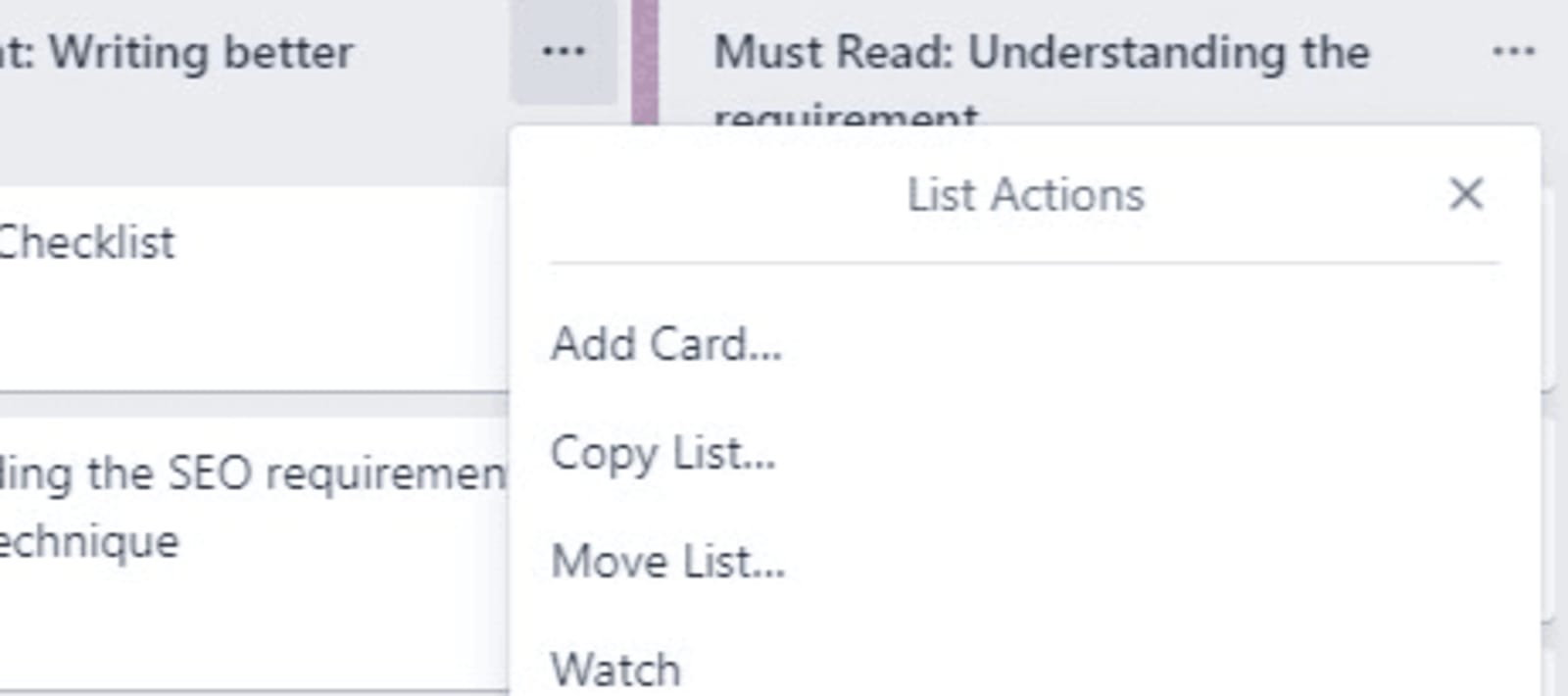
Place your mouse on the (...) at the top of the list. When you do this, it will open a drop-down menu with a list of options.
After this, select Watch. Doing this notifies you of all the changes effected on the different cards present in that list.
Board Watching

To subscribe to a board, simply go to the board menu located at the far right of the Trello desktop.
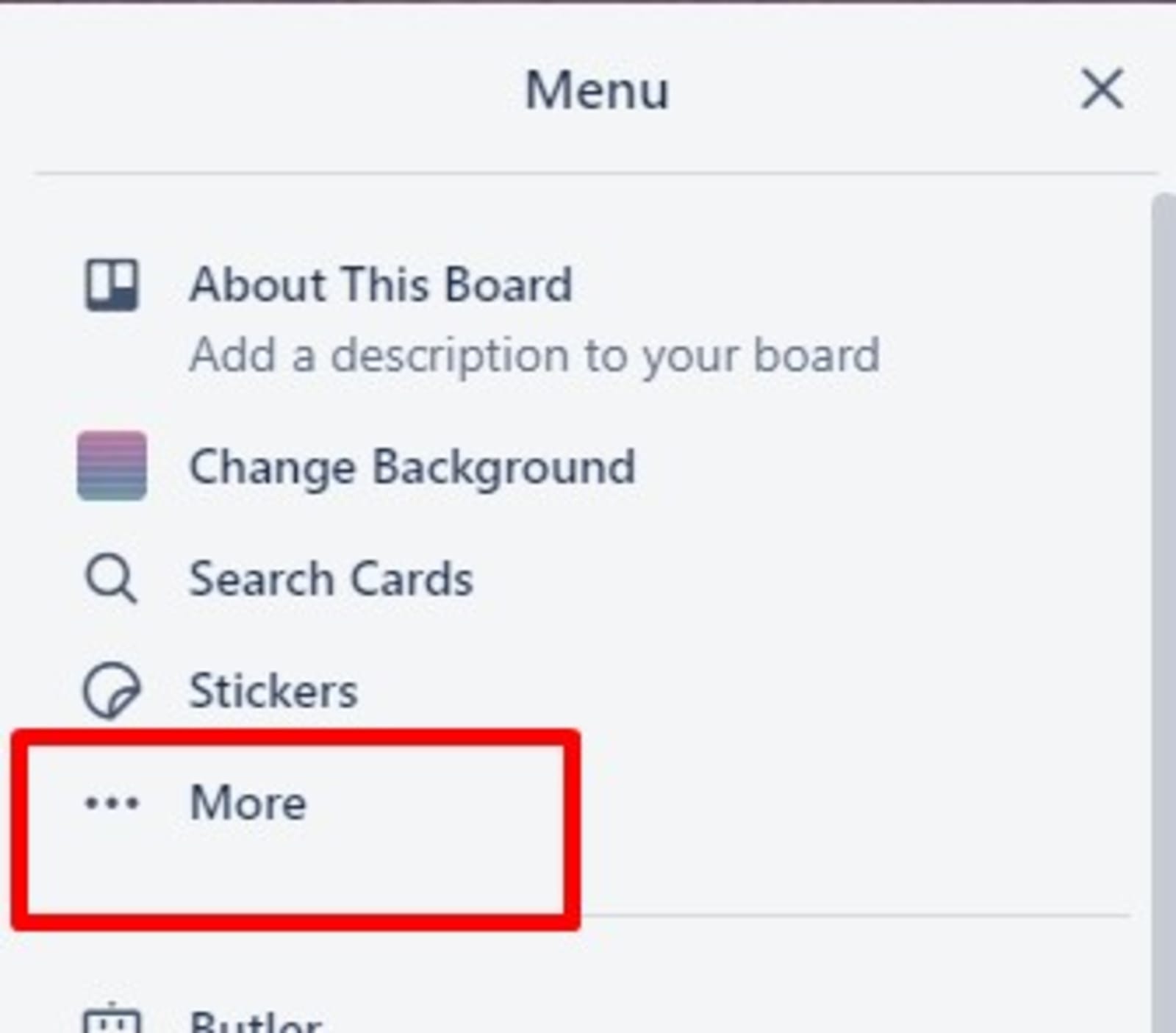
From here, select More and then click on Watch.
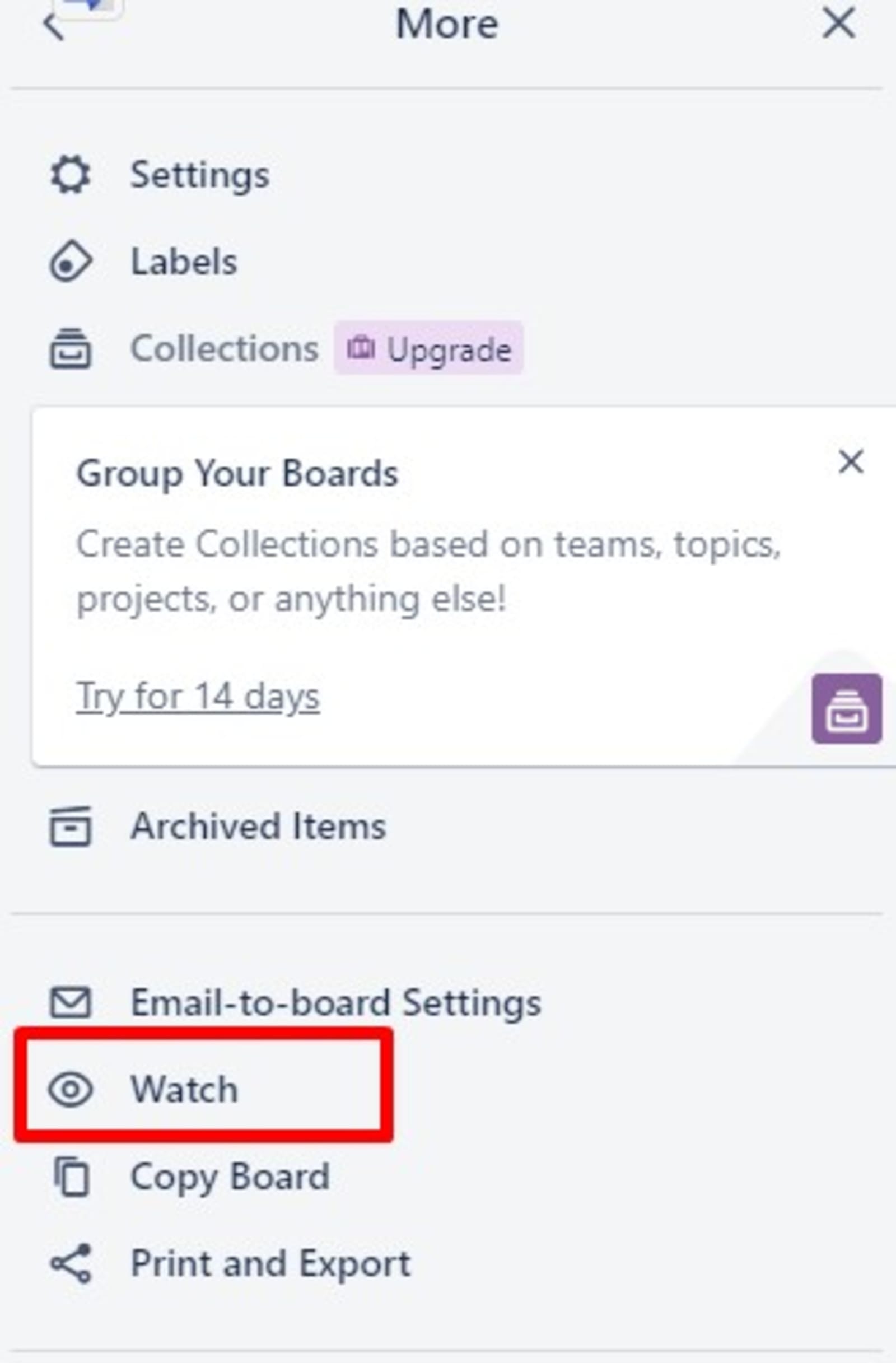
Doing this notifies you of all the changes effected on the different cards present in that board.
How Do You Know That You are Subscribed?
This is one very important question concerning Trello email notifications. It isn’t uncommon to find people confused about their subscription status. In reality, it is very easy to tell whether you are subscribed or not.
Simply look out for the eye icon on any of the boards, cards, or lists you expect to be subscribed to.
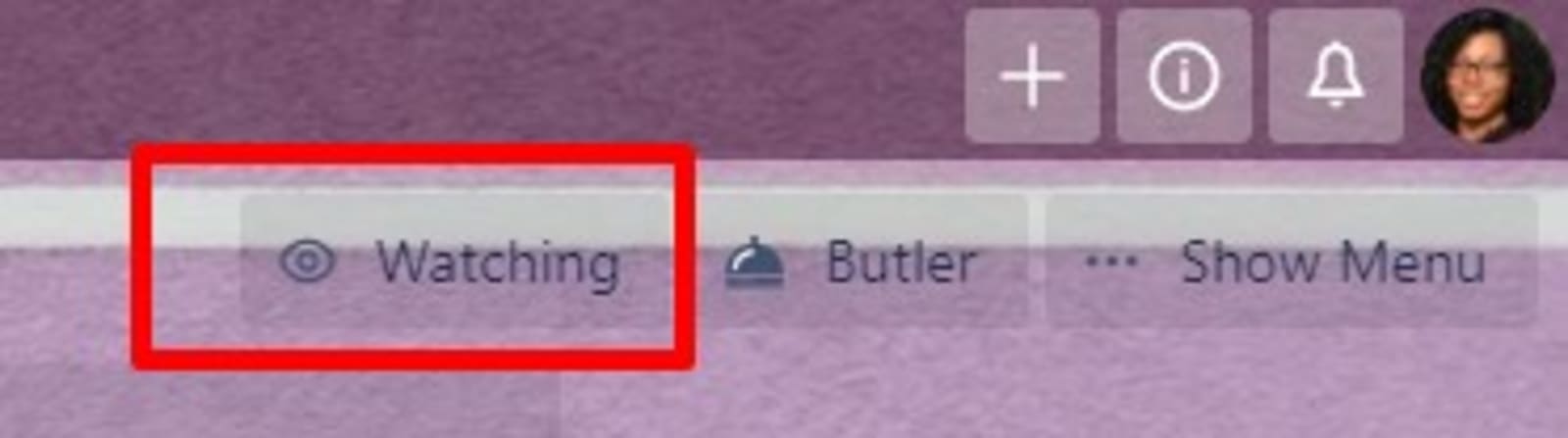
- You will find the icon towards the right side of a board.
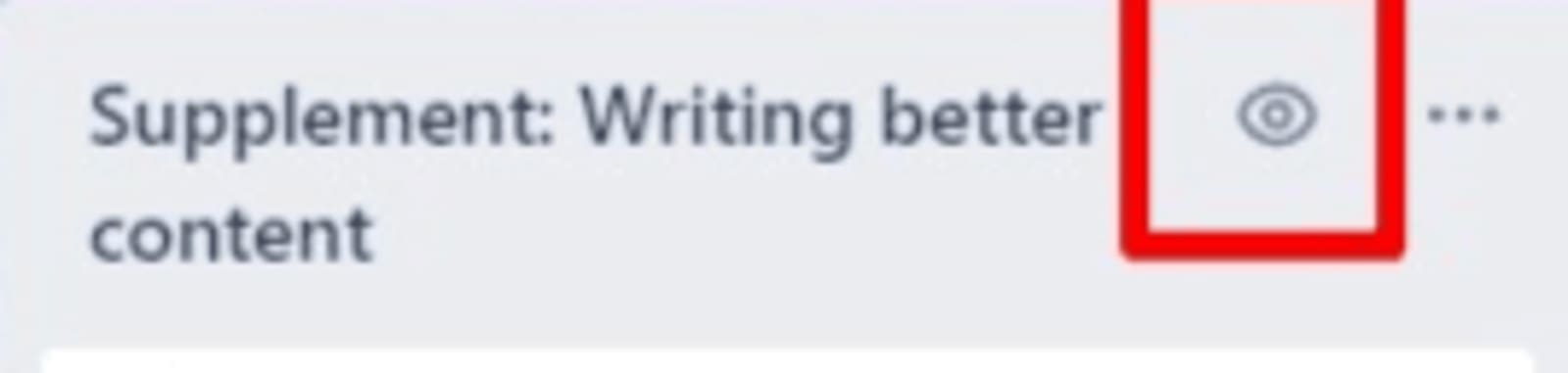
- It is a little different in lists as it is just beside the list’s name.
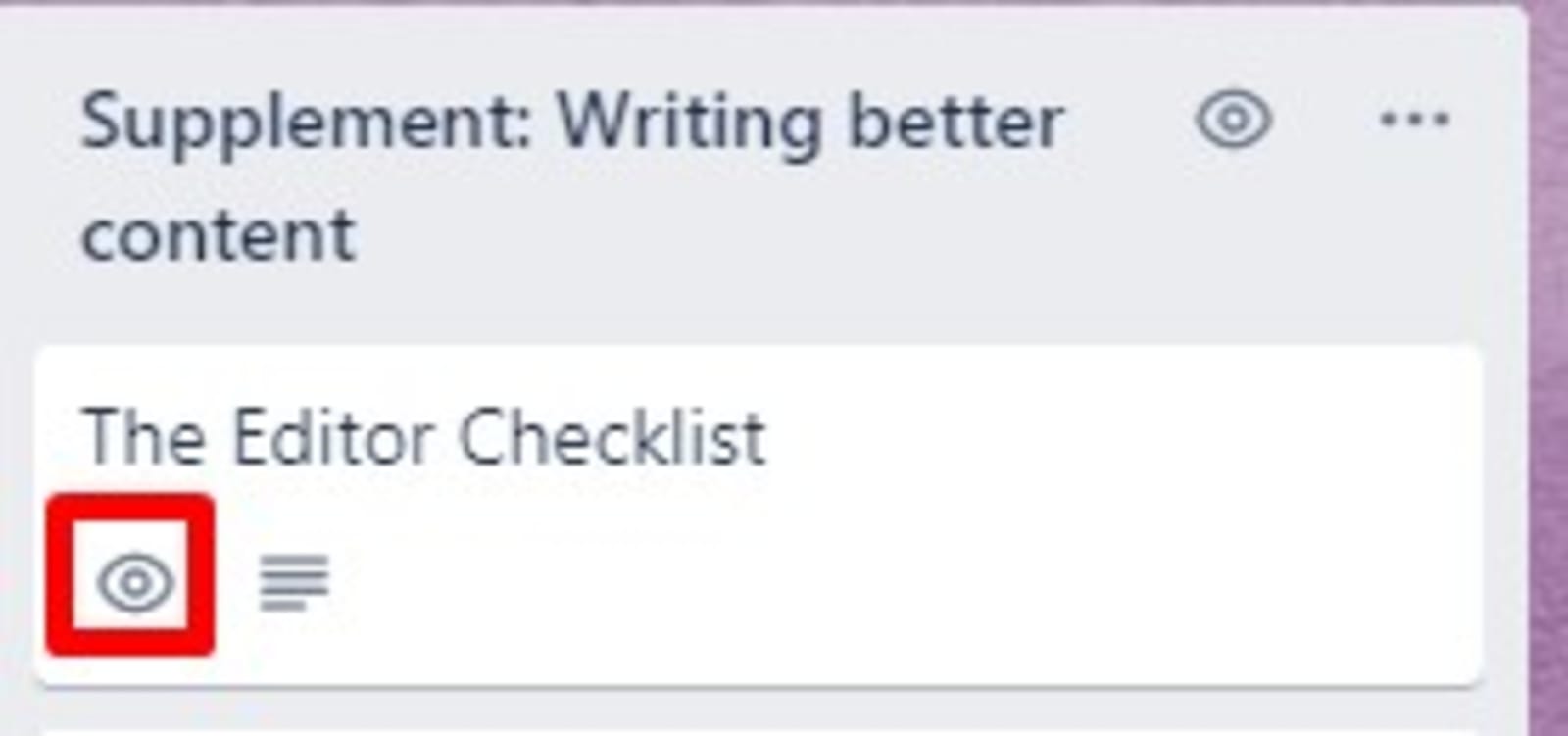
- The eye icon sits beneath the card title on cards.
Characteristics of Trello Notifications

This is another important point to discuss when talking about Trello email notifications. How do you know you have a notification when you don’t even know what it looks like?
In Trello, the notifications are always in the top-right corner, represented by a bell-shaped button. This button turns red once you have a new notification.
To view all your notifications, you should click the notifications button. It is important to note that Trello sends you an email for each unread Trello notification.
Due Date Notifications
Due date or deadline notifications are also very important Trello email notifications that we must discuss. If a due date is set on a card, you will get a notification of that date 24-hours earlier.
Note that the notifications only come in 24-hours before the due date. Also, you only get the notification if you were previously subscribed to that card. If you aren’t added, then you cannot receive notifications.
Setting Notification Email Preferences
It is possible to change the way that you get your notification emails. You can also adjust your email preferences. All of this can be done from your account page.
How do you alter these settings to suit your preferences? Click on the notifications button located in the header. From here, click on “Change Notification Email Frequency.”
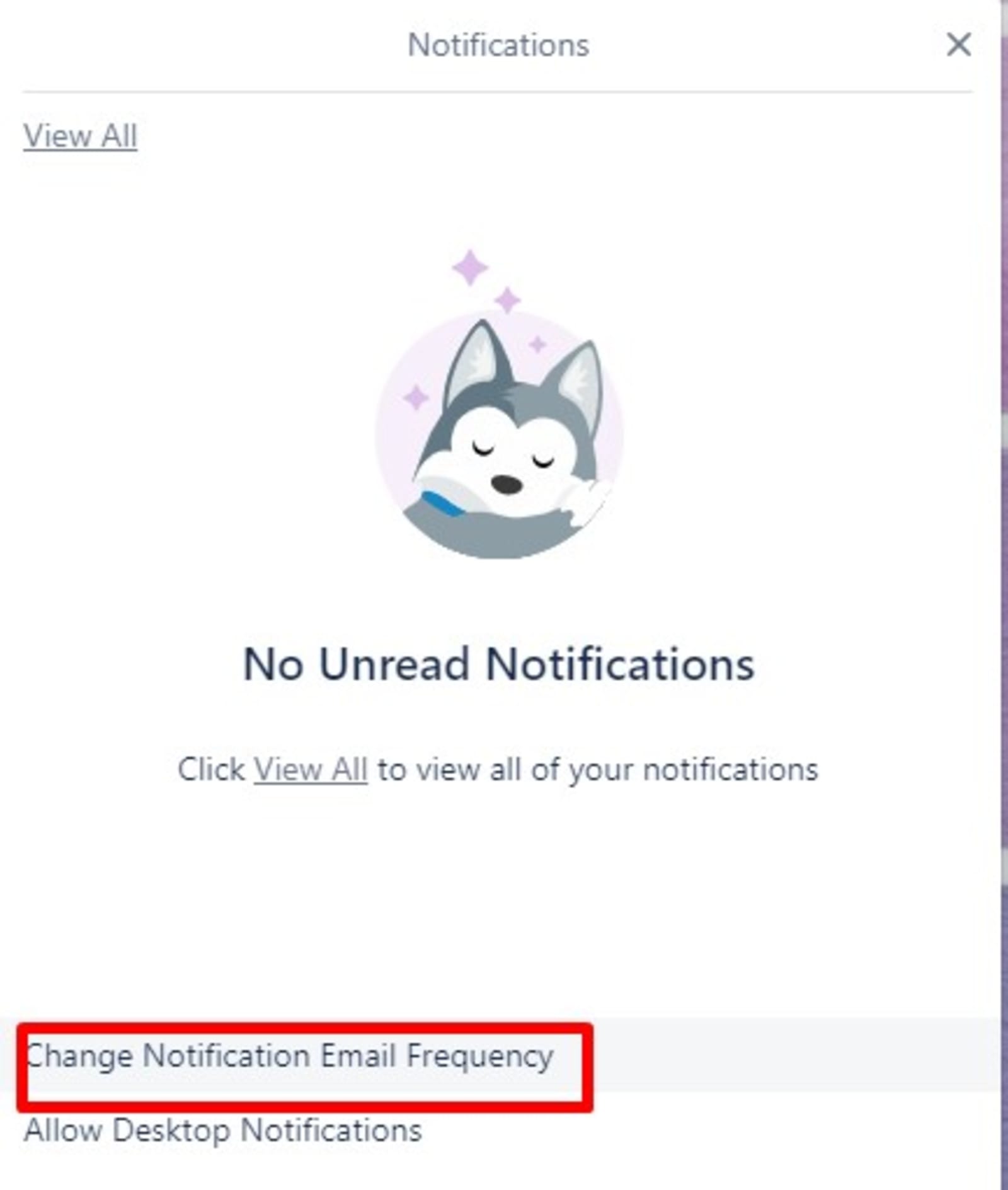
When you do this, you are served with several options including Instantly, Periodically, and Never.
The default setting is “Instant” which means that you receive an email for every unread notification. Notification emails only carry information about unread notifications in Trello. You wouldn’t see any messages for notifications that you’ve read.
It is possible to reply to individual notifications within Trello email notifications. You can also add new comments to cards as long as they are referenced with the email notification.
Desktop Notifications
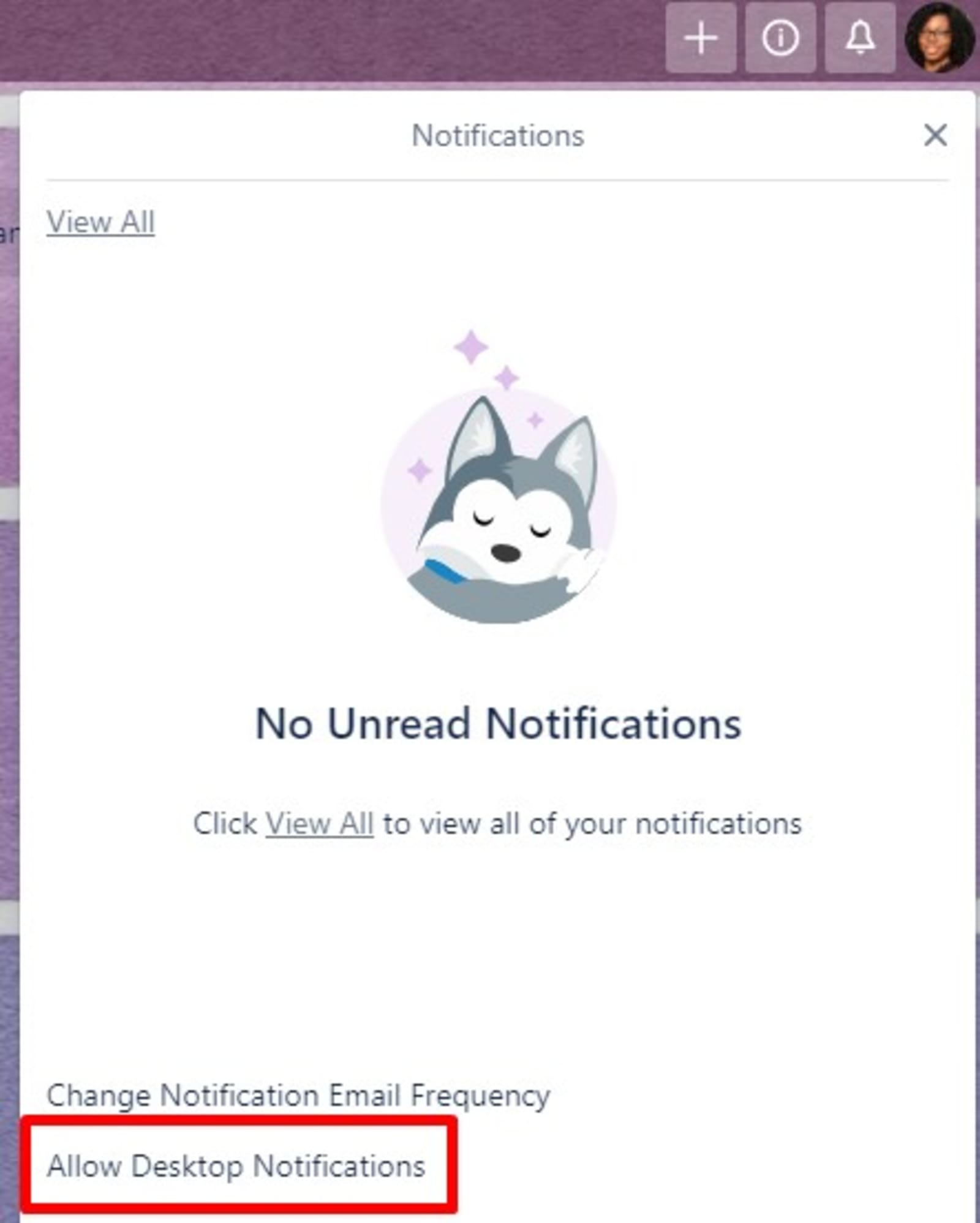
Depending on the web browser that you use, you can get desktop notifications. To enjoy this benefit, you have to be using Safari, Firefox, or Chrome. For now, this benefit is not enabled on Edge or Internet Explorer.
All you need to do is click the bell located at the header. After this, scroll down and then click on Enable Desktop Notifications. Once you are done, you will begin receiving Trello notifications on your desktop. As soon as you get notifications, you’ll see a small window carrying the notification appear at a corner of your desktop. Note that you can also set up these desktop notifications within your account page.
Disabling Desktop Notifications

If you are tired of receiving desktop notifications or they are stressing you out, you can disable them. How do you do this?
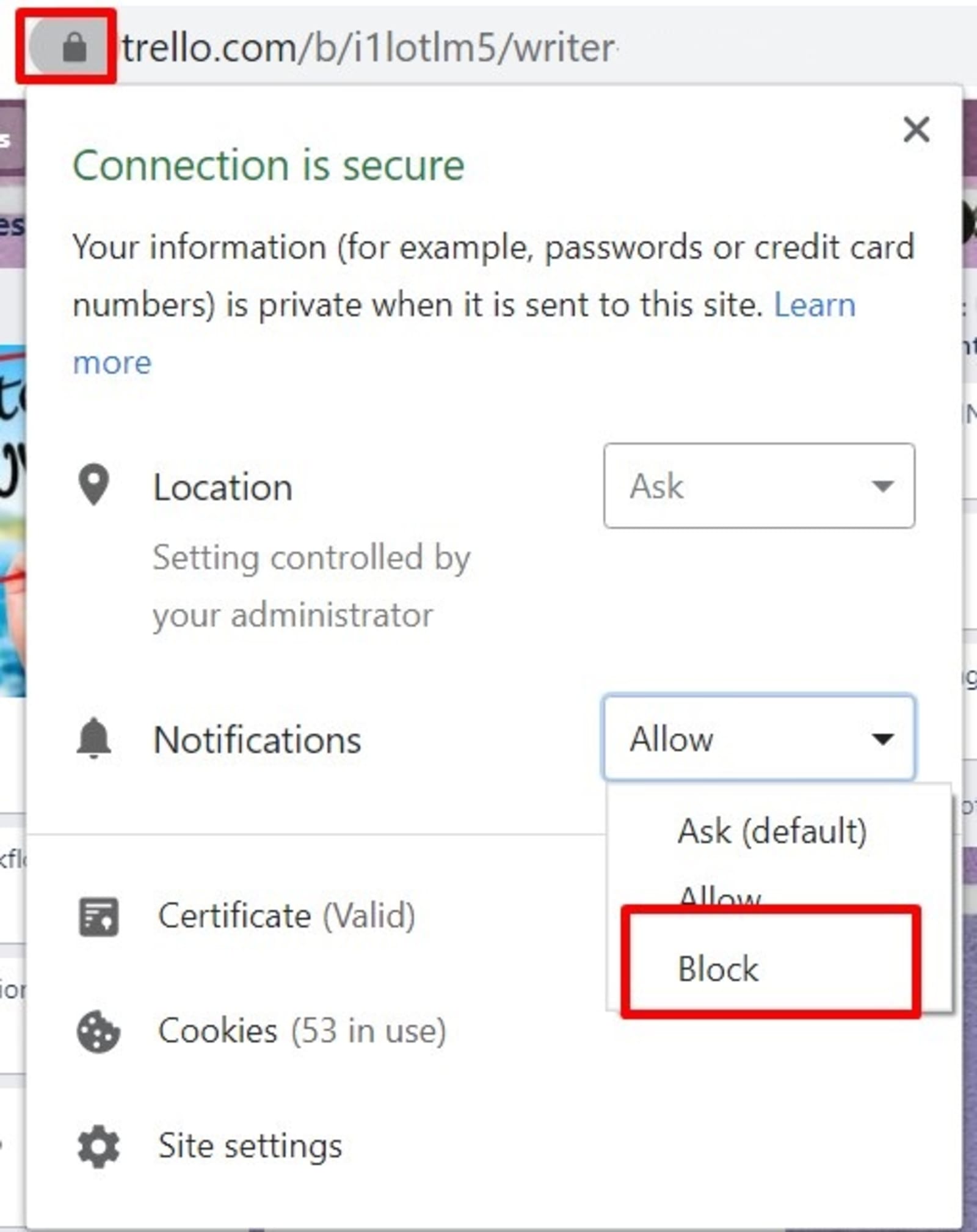
Simply go to the Trello official website in your Firefox or Chrome browser. From here, click on the Lock icon. This icon is located in the address bar of your browser. Go to Permissions then block the permission for notifications.
In Safari, all you need to do is to select Safari in the header and go to Preferences. From here, click on Notifications. Select trello.com from the website list and click Deny.
Conclusion
There you go, all you need to know about Trello email notifications. We have shown you how to set up all kinds of notifications on Trello. Do you think that we left anything out? Suggest them in the comments section below.

Maria is a Content Writer with keen interest in eCommerce and Internet Marketing. She is a Communications graduate and understands what it takes to write persuasive copy and blog posts. Outside of work, you can find her mini-blogging about her life on social media.